Posts

Showing posts with the label MOSS

Sharepoint 2007 - Scroll bars using page viewer webpart

You may sometime noticed that page viewer webpart displays scroll bars when you try to display pages that has large view area. This is because page viewer webparts works with fixed width and hieght and when content page increase webpart displays scroll bar. The solution for this is to use custom webparts if the page is internal page.

Sharepoint 2007 - Survey removing save button

You will notice save botton in sharepoint surveys when using sharepoint surveys with branching options. It confuse most of surveys users as generally user select save instead of next or finish which result in in complete surveys. We have checked a lot in sharepoint options and failed to find any option thay may allow admisitrator or pulisher to disable this buton and find that there is one work around using sharepoint designer for removing it. 1. Open site in sharepoint designer 2. Go to you subsite and expand pages under survey (created earlier with branching option) 3. Open newform.aspx and find following <asp:content contentplaceholderid="PlaceHolderMain" runat="server"> 4. Add following javascript before closing tag of the content place holder searched in last step <script> var x=document.getElementsByTagName("input"); for (var i=0;i<x.length;i++) { if (x.item(i).type=="button"&&x.item(i).value=="Save...

Sharepoint 2007 - Multilingual Sites issues in updating publishing pages

When you work with multi lingual sites implemented using Share point variation features you may find that whenever you try to update page in your source site it will automatically published to all variation labels and will overwrite your translated content in other sites. e.g. You have bilingual site with English and Spanish. Where we consider english as a src site. When you create a new page in English and Publish this page a new page in draft status with English content will be created in Spanish Site. Translator will translate content and publish page created in Spanish Site. Suppose you find a spelling mistake and update content in English site. Now when you go to spanish site using system administrator you will noticed that the page will be in draft status with Latest English content i.e. Translator will now have to translate the whole page instead of fixing the small issue.In order to resolve this issues you need to do following changes in your varaition settings. Open site using...

Sharepoint 2007 Showing outlook Inbox using outlook active X control

Outlook provides active X interface for displaying out look inbox and simple object tag can be used to show emails from your outlook inbox. It will display your default inbox therefore can even show images that are stored at your pst file. You may also use this Active X control in Share point 2007 using content editor web part to display users emails but following disadvantages should be kept in mind. Security concerns as it is Active X control Different browser specific and deployment specific issues Look n feel will be different and cannot be branded Will not use Share point security but will show inbox based on outlook configuration e.g. of HTML is as follows. <OBJECT classid=CLSID:0006F063-0000-0000-C000-000000000046 id=ViewCtlFolder width="100%" height="430" Codebase="http://activex.microsoft.com/activex/controls/office/outlctlx.CAB#ver=9,0,0,3203">> <param name="Namespace" value="MAPI"> <param name="Folder...

Sharepoint Configuration for Outlook Web Access on any site

Outlook web access provides view on your exchange folder from any Share point site using Page Viewer Web part with query string parameters configured to display view as per your organization requirement. As OWA designed for intranet therefore it is obviously recommended for intranet portal only. For extranet you may have to go through it with an extra security step as per your OWA configuration. Following technet article provide details of different query string parameter for configuration of your OWA view. http://technet.microsoft.com/en-us/library/bb232199(EXCHG.80).aspx In general following query suffix for Page Viewer WebPart will suffix https://{server name}/owa/?cmd=contents&f=inbox

Sharepoint 2007 Working with Outlook Web Access Webpart

Share point 2007 provides following web parts for accessing exchange content using share point My Calendar (use with Microsoft Exchange Server 2003 or later) My Contacts (use with Microsoft Exchange Server 2003 or later My Tasks (use with Microsoft Exchange Server 2003 or later) My Inbox (use with Microsoft Exchange Server 2003 or later) My Mail Folder (use with Microsoft Exchange Server 2000 or later) Above web parts are provided in order to be utilized Share point My Sites. If you want to use Outlook Web Access in other website you may need to use outlook web access queries from page viewer web part.

How to upload a document in a document library programmatically

Recently I have encountered in a situation where I was required to upload few documents in a document library using my code. I found this fairly simple. Thanks to object model exposed by Microsoft. Following code can be use to upload a document to document library with in specific site. SPSite mySite = new SPSite("http:// "); SPWeb spWeb = mySite.OpenWeb(); SPDocumentLibrary docLib = (SPDocumentLibrary) spWeb.Lists[" "]; SPFolder folder = docLib.RootFolder; using( FileStream fs = File.OpenRead(" " ) ) { SPFile file= folder.Files.Add(" ",fs); file.Update(); } I hope this will be helpful for those who wants to update documents and also needs to perform few custom actions on uploaded documents.

Sharepoint workflow doesnt started automatically

I recently experienced this issues with my custom work flow designed using share point designer. Work flow didn't started automatically even though option was selected. After doing a little research I found that issue was due to a security fix in WSS 3.o SP1 Therefore, after installing WSS 3.0 SP1, declarative workflows will not start automatically start if 1. The Windows SharePoint Services Web application runs under a user's domain account. 2. The user logs in by using this domain account. 3. The site displays the user name as System Account.

Configuring MOSS SSO Service

I was working on configuration settings for MS SSO service in MOSS. I think following information may also be useful for you. You need to perform following simple steps for configuration of MS SSO Service. 1. Configure log on account to administrator user and run Microsoft Single Sign On Service. 2. Go to CentralAdministration->Operations->SecurityConfiguration->ManageSingleSignOn Serice. 3. Configure single sign on using available links i.e. Manage Server Settings, Manage Encrption Key, Manage Setting for enterprise application definition, Manage account information for enterprise application definition For details please see following link http://technet.microsoft.com/en-us/library/cc262932.aspx#Section1

Sharepoint designer workflow : Getting data from user and storing it in workflow vari

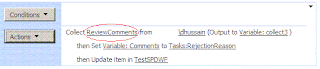
Image
Sharepoint designer workflows provide a great functionality using its out of the box activity for collecting data from user with in workflow. When this action is used a form for getting data is created automatically as shown in images below So if a user want to do some small customization the form will be available to him to do so. The data collected in response to this action becomes part of task and can be used later in your flow for any decsion or can be utilized in other actions. For e.g. I used data (comments) from user and update column of my list called comments. This Action ask you three things 1: Data (Used for desinging question and creating form) 2: User (Used for assigning for to MOSS user) 3: Output Variable (List Item Id for fetching data later) In my sample I clicked on data and add a field for asking comments from user. Assigned this to appropriate user and set output variable to a newly created variable collect3 I created a new workflow variable of type comments for s...

Sharepoint Designer Workflow Calling a webservice function

Share point 2007 provide great functionality of work flows using share point designer. Sharepoint designer workflow provides different set of workflow activities to support users in designing their custom workflow. However designing is not limited to out of the box activities but it also provides power to create custom designer activities so that user can design their own logic according to their business. In my case I was just thinking that if we can call a webservice from a sharepoint designer it would make a life easy for doing lots of things can can only be achieved by complex calculation from external systems. There are two ways for this 1. Write your own custom activity 2. Use an extension from codeplex I found following extension package very help full http://www.codeplex.com/iLoveSharePoint/Release/ProjectReleases.aspx?ReleaseId=20898 and not only this but the deployment is fairly simple and help provided on following blog is also great. http://cglessner.blogspot.com/2008/12/il...

BadImageFormatException on MOSS 64bit environment

I have deployed my system developed on 32 bit to 64 bit production environment and was continuously getting bad image exception. After a lot of drill down I found that the issue was due to deployment of custom web parts developed for share point site. The issue was that I was referencing sharepoint 32 bit dll from my visual studios for accessing moss object model. Issue get resolved after replacing dll at production environment from (\Program Files\Common Files\Microsoft Shared\web server extensions\12\ISAPI). Though the problem is resolved but as I have compiled custom web part with 32bit dll I still thing compilation with 64bit will be better option this will lead to an issue that development for 64 bit require 64bit machine.

How to configure your MOSS site on a mobile devices.

I was working with share point site and lots of documentation is available on the net that claims that every list and library in MOSS 2007 and WSS version 3 is capable of hosting mobile view. And we can see the site after appending m in site URL. I tried that it was not working and giving 404 error. After some research I found that http:// /_layouts/mobile/mbllists.aspx was displaying mobile view. That proves that MOSS supports mobile view but still not sure why appending m in my site not working as expected. Any ideas will be much appreciated.

Creating a new page layout using MOSS

Page layout is a very powerful feature for setting up templates of your pages in a publishing site. You need to do following steps in order to create pages using page layout Define Site Column (If you need to add columns for your page you will have to define columns) Define Content Type (Need to define content type based on column) Create Page Layout Modify it in Share Point Designer Publish Layout Create a new page using published layout

Customize content query web part title link to redirect to source after pressing close on detail button

I observed that whenever we use content query web part and try to browse for the list detail page. It will come back to View All page of list instead of going back to where it was coming from. I resolved it by doing following small changes in XSL style of content query web part to fix this as per my requirement and making it consistent with other list options. Create custom style Please refer my earlier post "How to add a new indicator in a Content Query Web Part" for details of customization and before following these step 1. Edit ItemStyle.xl 2. Add following name space at the to xmlns:ddwrt=”http://schemas.microsoft.com/WebParts/v2/DataView/runtime” 3. Add <xsl:param name=”PageUrl” /> just after name space declarations. This will define a variable Page URL and populate it with current page URL 4. In your custom template add following line before processing of title <xsl:variable name=”CustomPageLink” select=”concat($SafeLinkUrl,’&amp;Source=’,$PageUrl)” /> ...

Issues in sending MOSS Alert from Document Library

Working with MOSS is great but sometime its make you crazy for small issues. That happens to me......... I was working with document library and adding alerts on document for notification from MOSS whenever any new document get inserted in the system. I realize that few of my alerts were not working. i.e. I get the initial email from Sharepoint application telling me that you have subscribed for alerts but when I did insertion nothing comes up in my inbox. I did lot of searching on internet but didn't find anything related to my issue. I have verified that my timer service was properly scheduled and running and my user has proper rights on document library. After sometime I realize that my alerts were working fine with normal document library but were behaving abnormally when I try to us custom content type. So I remove required alert and add a new alert for all type of changes!!!!!!!!!!!!!!!!!!!!!!!!!!!! and suddenly I get flooded with alerts in my alerts. Now I understand issue. ...

How to add a new indicator in a Content Query Web Part

Content Query web part doesn't show New! status indicator for new items by default. In order to add new indicator a customization of content query web part will be required. Following steps define the process for adding new container 1. Open SharePoint Designer and connect to your site 2. Browse to following path from SharePoint Designer StyleLibrary->XSL Style Sheets->Item Style.xsl 3. Above xsl contains style templaes that can be selected from Content Query web part's properties. You need to implement your custom template. 4. Copy any suitable template that can become base for your custom style. I would prefer to copy default template 5. Paste template at the end of file before </xsl:stylesheet> end tag 6. Change name to your style name e.g. CustomStyle and match to custom style e.g. Row[@Style='CustomStyle'] 7. Need to add following declaration at top of the file with other declarations xmlns:ddwrt="http://schemas.microsoft.com/WebParts/v2/DataView/r...

Issue in share point 2007 or MOSS menu selection

We have discovered an issue in share point / MOSS top navigation menu while associating menu headings with share point system pages like list details pages. Reproducing an issue is simple using following steps. 1. Go to your site 2. Select Site Action->Site Settings -> Modify All Site Settings 3. Select Navigation under Look n Feel section 4. Click on Add Heading 5. In Title write test 6. In URL select browse and browse to any list in your site e.g. /Documents/Forms/AllItems.aspx 7. Click ok 8. Go to home page of your site 9. Select top navigation menu created in step 4 10. You will find that your page will open but first menu item will remain selected in your top navigation menu We have noticed this issue while doing modification with system pages only. So workaround to this solution will be to create a separate page and use show pages list to display pages and hide any additional pages that you don’t want to display

Customizing Share point 2007/MOSS Top Navigation Bar/Menu Control (ASP Menu Control)

Customizing Share point 2007/MOSS Top Navigation Bar/Menu Control (ASP Menu Control) For customizing menu we have two options. 1. Write a custom control and embed it in Master Page 2. Customize existing share point menu control I believe that option 2 is better as compared to option 1. But you may face certain issues in implementing option 2. We have listed solutions for few issues in customization of share point menu using share point menu controls. Please note that following solution is based on assumption that solution will be for single level menu. Simple Customization using CSS If your customization is simple i.e. can be catered easily by applying CSS. Option2 will be fairly simple and can be implemented easily without any issues. In above case you have following options a) Modify existing CSS class. b) Create new CSS class and associate it with share point menu control In case you are using existing CSS class you don’t need to change anything in master page and need to do styli...

Using content query web part

A Content Query Web Part displays a dynamic view of content on a page in your Microsoft Office SharePoint Server 2007 site. The Web Part runs a query that can span lists and sites in your site collection, and then presents the results of that query on the page. You can, for example, use this Web Part to display the five most recently published articles in your Web site, regardless of where they are stored. By default, the XSL style sheet that controls the presentation of the Content Query Web Part renders the Title, Description, ImageUrl, and LinkUrl columns (if present) of the items the query returns. The Web Part renders the ImageUrl and LinkUrl columns as an image and as a hyperlink, respectively. The Content Query Web Part uses XSL style sheets to render these columns by default. If you want to query for custom content types and render specific columns from those content types in the Web Part, you need to perform some minor customization in the .webpart file. Follow these steps in ...