Posts

Mobile Development - First Step

As a developer we already know that in order to start any development project. We need to start with the design of an application. Mobile development is not an exception. The question is that we create use case to model our business, wire frames and prototyping to do user interface design then what do we do to plan our mobile application? The answer is simple, First thing is that we need to visualize our application and we start we story boarding of our app. In order to do story boarding you have to take components of your mobile app and define the flow of your application with help of major component. Activities All elememt in android are activities that have an UI definition using xml and a code behind to hadle evenet widget/Views e.g. Button, text box Layout e.g. Linear layout There are may tools available that may assist you in doing story boarding however you may start it on a blank piece of paper
Mobile Development - Android

Before staring I must say that https://developer.android.com/index.html is very nice and can give answers to most of your queries from installation, tools and sample with step by step guides. Android Studio is the essential tools that you will need to install to start mobile development. You may choose other option like eclipse however Android Studio is the quickest to start. In general the tool is very nice and can really help you to quickly pick up pace with mobile development however you may need to do little bit tweaking to make if run faster. In my case, my antivirus may give me hard time to run it quickly. I had to add certain programs (Android Studio, Emulator etc) in my antivirus exception list to make it up and running, If you have an android phone, you may use it for testing and debugging purpose. In fact this will be the fastest way to do testing and debugging of your application. Android SDK contains an emulator software that is very powerful and can build th...

Configure My Site in Sharepoint 2013

Image
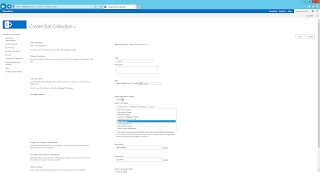
You can refer following microsoft link to configure my site however I have list down few quick step to get it done with minimul setup https://technet.microsoft.com/en-US/library/ee624362.aspx 1. First step will be to create a mysite site collection in the web application where you would like to enable my site feature. To do this goto central administration 2. Select Application Management -> Create Site Collection 3. Save to URL for later configuration 4. For template select Enterprise -> MySiteHost Template 5.Enable self service application, Go to Central Admin 6. Select Manage Web Application under application management 7. Select Web application 8. Select "on" in the self service site creation and be hidden from user in start a site. 9. Select Manage Appluication 10. Click on Permission Policy 11. click Add new Policy 12. Grant Create Subsites - Create subsites such ..... 13. Few pre-req permission will be selected automatically 14. click save ...

Creating a first Visual Webpart for Sharepoint 2013

Image
As compare to earlier version of SharePoint, development on sharepoint 2013 is charm. You just need to build your development environment and you are ready for development. I used Visual Studio Ultimate Edition for this using C#. You need to install Visual Studio on a machine where SharePoint 2013 is installed so that you can start development. The resources available on Microsoft site are more then enough to kick start with the development. Following are steps for creating a Hello World web part. 1. Open Visual Studio (as an administrator, other wise it will restart on step 4 ;) ) 2. Click File -> New -> Project as shown below 3. Select Template under Visual C#-> Office/SharePoint -> SharePoint Solution 4. On the right pane select SharePoint 2013 - Visual Web Part 5. It will ask for share point site (If you need to create SharePoint site collection follow my post ) 6. Validate site URL and select "Deploy as a farm solution" 7. As soon as you click...

Manage Services on Server link doest show

You open SharePoint 2013 central administration and surprised that "Managed Services on Server" link doesn't showed up. You checked that user has sufficient rights.. I had similar issue and after doing some research I found that it was because I open central admin directly from IE which will not open it as an admin. So the best way is to open in using SharePoint Central admin link in program files. If you are using windows 2012 and wondering how to access program files you may refer my  post

Windows 2012 - How to access program files

Image
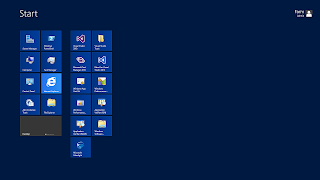
If you are an windows users who is new to windows 2012 you might be wondering how to access program files in Windows 2012. Following are steps to do this. 1. Press window + d to bring desktop in front. 2. Press window button and it will show start menu as show below. 3. Right click and you will show All app button on bottom right as shown below 4. As you click all app you will see complete program files as shown below

Intalling Sharepoint 2013 on Windows 2012

Following are few steps for intallation of Sharepoint 2013. For this post I am using VMWare for fresh installation. 1. Install Windows 2012 Data center 64 bit version: 2. Configure Active Directory (click for details) 3. Install SQL Server 2012 4. Install Sharepoint 5. Configure sharepoint services. 6. Create your first web-application Go to share point central administration Navigate to manage web application and click new to create new web application. 7. Create site collection After creating web application go to central administration Click Application Management Click create new site collection. After creation of site collection you are ready to work on SharePoint.